Although I'm not a huge fan of the default android browser (preferring to use either Skyfire or Opera mini) I do use the default browser on a more than regular basis, mainly to keep a track of this blog whilst I'm out.
As a result of playing with the browser I've decided to explore what you can do with it and one of the first things I did was change the homepage from the default Vodafone "myweb360" to the much more useful google.com. This guide shows how I did just that starting with the screen on the left (to get to this screen press menu and then press on more).
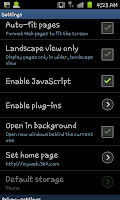
On the screen on the right you need to scroll down to Settings which will open a screen like the one on the left here. At this screen you will notice a lot of options, the one that you need to click on is rather unsurprisingly "Set home page". As you can see in this image the home page has been set to "http://myweb.360.com".
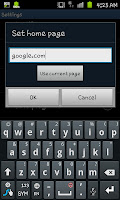
By clicking on the option you will get the chance to set a new home screen as you can see in the screen shot to the right here. You can type in any page that you want to open when you open the browser or a new window. If you're already on the page you can easily click "Use current page" instead of typing in the web address.
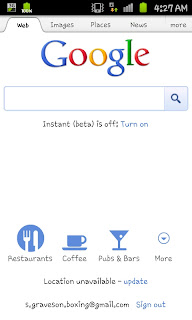
After opening a new window you will see the new home page in effect just as you can see here. This is very simple to do and although it's not enough to make me an out and out use of the default browser it is a very useful feature that you may wish to make the most of if you are stuck into using the default browser.


 At the "Settings" menu you will need to scroll right down to the bottom until you stumble up on the "Advanced settings" sub menu. The first "Advanced setting" you will see should say "Select search engine". Clicking on this option will see a new short menu pop up (see the screen shot to the right) allowing you to pick from the in-built search engines.


