Showing posts with label S4. Show all posts

Wednesday, July 3, 2013

How to use the "Dual camera" feature on a Samsung Galaxy S4

One of the big selling points (or gimmicks, depending on how you see things) with the Samsung Galaxy S4 was the ability to take a picture with both the front camera and the main camera at the same time.

The idea was that the photographer could be included in photographs and videos or could be at a party on Skype and be included in a video conversation along with others in the room.Sadly beause we're pretty much doing this guide on the fly we're unable to truly show off how useful the feature is, but we can show you how to do.


Firstly you will need top open the camera app. From the Camera app you will notice 3 symbols on the top right hand side of the screen. The top of those 3 options allows you to switch from the front camera to main camera (and vice versa). The bottom of the 3 options opens up the camera menu. So instead of clicking on either of those two you need to select the middle option.

When you've pressed that icon you will notice a stamp like shape taken up by whatever is in the view of the other camera (as you can see in the image on the left, it's my hand!)

Of course this feature was made with certain purposes in mind though I could imagine a number of other scenarios including for example, taking a photograph of yourself somewhere rather unique (i.e. the top of a mountain) or with someone special (for example a celebrity) though it can, of course be used for various humorous pictures if you've the creativity to think of things.


How to change the clock format on the Samsung Galaxy S4

Most people seem to dislike using a 24 hour clock. It's always been a mystery to me as to why you'd dislike it but some folk just really don't get it. As a result of that we've decided to help show you folks how to change the clock format from the 24 hour format (popularly referred to as "Military time") to the more common 12 hour format.

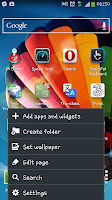
Firstly you will need to go into the "Settings" menu which you do by pressing the phones menu button on any of the home screens and then clicking on "Settings" which is at the bottom of the pop up menu.

On the settings screen you need to select on the "More" tab which is on the extreme right of the "Menu" screen. This screen has a lot of options and settings that you can fiddle with though for the sake of changing the clock format you need to select the "Date and time" option which should be near the bottom of the screen.

After selecting on the "Date and time" option you will see a new screen with a number of date based option. For the sake of the guide you need to unselect the "Use 24-hour format" if you wish to use a 12 hour clock format (with AM/PM showing at the top of the phone) or select the option to continue to use a 24 hour clock.

The choice of format is of course yours to decide.


Wednesday, June 26, 2013

How to change the font size on a Samsung Galaxy S4

 Although phone screens are slowly getting bigger as standard, they can still sometimes be hard to read. With the Samsung Galaxy S4 you easily change the font size to suit you and your needs. This guide will show you exactly how that is done.

Firstly, as with almost every display guide you will need to access the settings screens. To do this you press "Menu" on a home screen and click settings from the pop up menu (see picture at the top of this guide for clarification, if needed).

From the Settings screen (see right) you will see 4 tabs at the top. By default the phone will have opened the "Connections" tab, so you will now need to click on the "My device" tab next to it, so you can find the "Display" sub menu.
In the "My device" tab you will see "Display" near the top. From here you need to click on that and then scroll down the "Display" menu until you come to the "Font" section.

The "Font" section includes 3 options, a "Font style" a "Font size and an "Increase legibility" options. For the sake of this guide click on "Font size".


After clicking on "Font size" you will see a new menu open up with a choice of 5 options. By default the phone is set to "Normal" though you can select "Tiny", "Small", "Normal", "Large" and "Huge" depending on how you wish to personalise things.

One thing to note is that the "Huge" setting only applies to certain apps (with the rest resorting to the "Large" setting. This also doesn't cover EVERYTHING on the phone but does the menu's most apps and various other bits and bobs that you may feature writing.

Of course if at any point you want to change the size back you just need to go through the same steps and select the size you prefer.


Tuesday, June 25, 2013

How to tether (USB) with a Samsung Galaxy S4

I have recently moved house and as anyone who moves house will know the internet connection they have won't be instantly activated at their new home. Fortunately thanks the "The One Plan" from 3 I've not been without internet thanks to the ability to tether that the plan includes.

Tethering, for simplicity terms is where a laptop (or computer, or games console, etc) shares the internet signal that the phone is using. Effectively it uses the phone as a modem. You can tether either by bluetooth or by USB

This guide will show you how to tether with a Samsung Galaxy S4 via a USB cable (that now comes as standard as part of the phones charger). Though before we go any further there are a few things to be aware of.

Firstly your phone will need to be picking up a mobile internet signal, secondly you will need to have your phone connected to whichever device you want to use (via USB) and thirdly you can incur data charges (and a lot of them for tethering) so make sure your plan allows tethering!
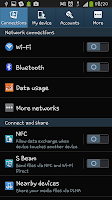
To start you will need to open up the phone's "Settings" menu. If you don't know how yo do this, you will need to go to a home scree and press the phone's "Menu" button, then select "Settings".

The first screen you will see in the settings screen is the "Connections" screen which will look like the screenshot on the right hand side. The first option you need to select from this menu is "More networks".
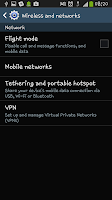
The screen you will then be taken to should look like the one on the left with 4 options. The one you need to select at this point is the 3rd one down, the one called "Tethering and portable hotspot".
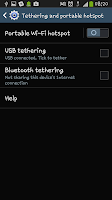
After selecting the "Tethering and portable hotspot" option will see a new menu with 4 options (including "Help") from this set of options click on "USB tethering" and make sure a little tick goes in to the box.
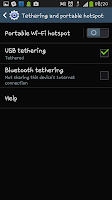

After you've ticked the "USB tethering" option you should notice that not only has the box got a tick in but that a new icon has appeared at the top of your screen (a little blue one that you can see in the bottom screen on the left). This means the phone is sharing a connection with your device.

Now the next step depends on what you are connecting it to. For a laptop or computer your device should treat the connection as a simple wired connection, as if you were using a USB modem (because that's effectively what you are doing) for other devices, i.e and Xbox or a Wii things may be a little more complicated (unfortunately we've not tested those).

When you are done tethering you merely need to unplug the cable from your phone or untick the "USB tethering" check box.

Once again, before you use this guide, be aware, tethering can run up major data charges. Please make sure you are on a plan that allows tethering and make sure you stay inside your limits.

How to show the battery % on a Samsung Galaxy S4

One of the problems with most mobile phones now a days is that the battery gauge is too hard to really understand. In the past the battery graphic used to be broken up in to sections representing a %. For example a battery might show 5 sections with each one representing 20% of a fully charged battery. Now however we just have a green bar with no real indicator of what we have left.

Sure you can go through the menu's to check whenever you want, but wouldn't life just be easier if the phone told you what was left in the battery?

This guide will show you how to make the battery (as a %) show up in the notification bar allowing you to keep tabs on your battery level at all times, with out the need to navigate various menu's.

To start you will need to enter the settings screen. So go to a homepage and press the phone's "Menu" button, then select "Settings".

After opening the settings screen you will need to select the "My device" tab from along the top of the screen. Clicking "My device" should take you to a screen like the one in the screen shot to the left.

After clicking on "My Device" you need to select the "Display" option from the
list. It should be the second on down(as you can see in the screen shot).

When you click display you should be taken to a whole new list of options. From here you need to scroll down until you see a header for "More settings".

In the "More settings" section of the display menu you should be able to find a check box for "Display battery percentage". If you tick this box you will then notice that there is now a small "%" icon and number next to the battery icon allowing you to know exactly how much battery you have left at any time.

Of course, as with most things "Android" you can turn this on and off at will meaning that you can have it on one day and off the next with out any sort of issue at all. You just need to uncheck the box to tun it off,,

Monday, June 24, 2013

How do I set up a pattern lock on my Samsung Galaxy S4?

 One of the top news items right now concerns information and what's happening with it. The story (as I'm sure you are aware, thanks to Edward Snowden) is that the US government is tracking everything we do online. Whilst we can't stop that, we can stop nosy people from looking at things on our phones. One way to do that is to use a "pattern lock" lock screen.

This guide will show you how to set up a "pattern lock", lock screen on a brand new Samsung Galaxy 4S.

First things first. You will need to access the phone's menu settings. To
do this you need to be on a home screen and then press the menu button on your phone. This should open a screen like the one at the
top of this guide.

From the pop up menu you need to select on the "settings" option will will open a new screen (similar to the one on the right). From that screen you need to select "My device" from the tabs at the top (as you can see in the picture it should be the second one along.

From the "My device" screen you need to select the "Lock screen" option which should be at the top (see the image on the right for guidance if needed).

After clicking on "Lock screen" you will will be taken to the lock screen menu which is full of various options and settings for you to play with. For the sake of this guide you need to ignore all the options and just select the top setting of "Screen lock".

Once you've selected the screen lock option you will be taken to a sub menu with a list of options for you to select from.

By default the Samsung Galaxy S4 is set to the "Swipe" lock screen. What you need to do change it is to select one of the options provided, such as "Face unlock". For the sake of this guide however we will be selecting the "Pattern" option.

Having selected the pattern option you will be taken to a screen with 9 dots. You then have to decide on a "pattern" involving at least 4 dots. Once you've selected a pattern you will be asked to repeat it, just so that you can make sure it's the pattern you want.

After setting up your pattern you will also be asked to select a PIN in case you forget your pattern. Make sure this is a memorable number (i.e. your date of birth) because with out this you may well be stuck with a very expensive and hard to unlock handset.

Once you've selected your PIN and re-entered it your phone will have a "Pattern lock" lock screen in place the next time the lock screen is used.

To unlock the phone afterwards you merely need to enter the pattern you have selected (or if failing that, you will need to enter the PIN you entered).

Hopefully this guide will help you stop snoopers from looking through your phone!