Considering the fact that we all love a bit of privacy on our phone you may love to hear that setting up a simple security lock on the Samsung Galaxy S2 is incredibly simple and in fact the phone has several different types of locking system.
This guide is going to show you how to put on a simple "Pattern" lock using the phones in built security settings. To start this we need to open the "Settings" screen so press the phones "menu" button and then "Settings". At the settings screen scroll down to the "Location and security" option (see the picture to the right for guidance if you need it).
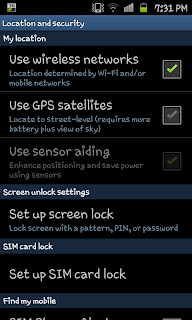
Whilst in the Location and Security menu you need to select "Set up screen lock" and after this you will find yourself with a new menu opening up. This new menu will feature 4 settings
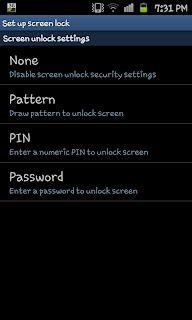
"None", "Pattern", "Pin" and "Password". For the purpose of this guide we will be using the "Pattern" option.
After clicking on "Pattern" you will see 2 screens guiding you on what you need to do and explaining how the system works. If you click "Next" on both of those screens you will be asked to "Draw an unlock pattern" on the screen over a 9 dot display (see left).
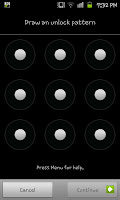
At this point the pattern must be at least 4 dots long so draw your pattern linking 4 (or more) dots together in what ever pattern you like. After you've done this you will need to click on "Continue" and repeat the pattern to help make sure you remember it. If you are the forgetful type I would advise you write down you pattern in someway, perhaps number the dots 1-9 and writing the way you've linked them. I.e. 1-2-3-6 (top left, top centre, top right, middle right). After confirming the pattern (bottom right after re-entering the pattern) it will be put in place.
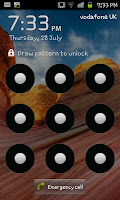
The next time you lock your phone you will see the 9 dot display sitting over the top of your regular lock screen wallpaper (see the image on the right). You will now need to enter your pattern before you are able to access the phone.
This is a brilliant and simple way to deter family and friends from trying to access you're phone, if you've some of those embarrassing pictures on there this maybe the perfect protection for you just make sure you remember it.

 When you are back in the "Location and security" menu you will notice some new options in a sub menu called "Screen unlock settings". Amongst these options is the "Use visible pattern", if you untick this check box and then lock your phone and go back to the pattern screen you will notice that the lights don't light up if you slide your finger across them.


