Tuesday, July 19, 2011

How to add an appointment to your Calendar on a Samsung Galaxy S2

 So we've added all out friends birthday's to the calendar on our Samsung Galaxy S2 thanks to syncing the calendar to facebook, but now we want to add more, we want to save important meetings and appointments.To do this we need to open the Calendar application (which you will find in the App drawer or on a home screen) and find the date of your appointment. In the case of this example the date will be tomorrow (Wednesday 20th July). Clicking on that date will open the create event screen that you
can see to the left.

On the create event screen you will be able to add the details of your appointment or event. The information includes what it's called, where it is, what time, a reminder and even the chance to add who it's with from your contact list.

When you've filled in all of the relevant details you need to click on "Save" at the bottom of the screen to make sure it is saved. After doing that you will be put back on your calendar screen with your new appointment added to the date you clicked on, as you can see now with the example showing "Meeting" at 11 o'clock in Barrow in Furness.

Monday, July 18, 2011

How to sync your your Samsung Galaxy S2 calendar to Facebook

Thanks to the advancement of technology we no longer need to use paper based calendars. Modern day phones, such as the Samsung Galaxy S2 have effectively made traditional calenders obsolete, we don't need a big paper thing on the wall when we have a mobile phone that stores everything. The biggest advantage however of modern day technology is that you can sync things together and rather than adding all your key dates to every calender manually you can automatically add things from facebook onto your phone.

The image to the right hand side is of the default Calendar application without facebook being synced to the the application. To sync facebook is actually really easy and to start you need to press the menu button then press on settings and scroll down to the option of "Calendar sync" which will look like the screen on the left. Here you will need to click on "Add account" and you'll see a screen that lists a number of account options. The one you need to select is obviously Facebook.

After clicking on facebook you will have to to enter your login information and select what you want to sync, the important option here is the "Sync Calendar" option (which will be the bottom of 3 possible options).
After you do this you need to check your Calendar again and you will then swiftly notice a number of blue dots on the calendar, these are the birthdays of your facebook friends just one of many things you now become aware of due to the calender.

For some they may still prefer traditional calenders but thanks to this swift and easy way of adding your birthdays and things to your phones calender it's getting harder and harder to defend buying calenders. It's yet another reason why smart phones are slowly becoming a vital gadget and becoming a true-all-in-one tool.

How to take a self shot video using a Samsung Galaxy S2

In the past we have looked at how to take a self shot photograph with the the Samsung Galaxy S2, well another self shoot option is taking a video again using the phones front camera. To do this we need to select the "Self recording" or "Self shoot" option. If you start by selecting the "Video camera" mode when you open camera you have 2 options to enable self shooting. The first option is by clicking the video camera icon in the top left corner (as you can see in the picture to the right). Alternatively you can click on the cog icon to open up the settings menu (see below).
When you've selected the self shoot option you will see whatever is infront of the front camera (which is on the top of the phone near the SAMSUNG logo). If you press on the record button (the big red one) you will begin to film whatever is in front of the lens, usually, yourself.

This isn't as good as the camera on the back of the phone (filming in a locked resolution of 640x480 as opposed to the HD quality of the main camera) though if you're wanting to do a video for something like youtube where you are talking into the camera this is an easier way to do it and see what you're actually filming.

How to send video messages (MMS) from your Samsung Galazy S2

 So you've got a brand new Samsung Galaxy S2 smartphone, one of the market leading handsets and you want to send your mate a video of something. To do this you need to change a few things before you start. Obviously you need to open the Camera application to begin then you need to select the video camera option (move the slide on the side from the camera icon to video camera option). After you've done this click on the "cog" icon for the Settings menu and change the recording mode to "Limit for MMS".
 After you do this you will notice one big change to the usual settings menu. The "Resolution" option will be locked out and lock in a rather poor rate of 176x144 a massive downgrade on the possible HD video recording ability of the phone. This is a bit disappointing though is simple to explain. The MMS system has a rather small limit on how much data can be sent, the low ratio means you can record several seconds of video whilst 1 second of HD video goes massively over the limit.

After you've selected the right settings then recorded your video you need to click on it in the bottom right hand corner (see the image of a garden in the image above) and you'll get a small menu at the bottom of the screen saying "Share", "Play" and "Delete". If you click "Share" you get the menu that is similar to the one you can see to the right hand side here. The option you want to click is "Messaging" which will open up the
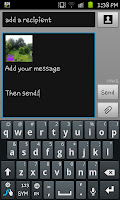
recogniseable messaging screen you can see to the left here.

As my haphazard on screen guide says you need to add your recipient, your message then click send. This will count as an MMS message so beware if you haven't got an MMS allowance that it will be added to your bill (and can be quite a noticeable amount).

As I mentioned earlier, this won't be a video that will show off the HD recording ability of the phone though and it will, sadly, look rather blurry (even with the Superfine setting). This is due to the limitations of the MMS system and the networks own standard as opposed to the phone it's self. Hopefully future technology will allow for bigger and better quality MMS to be shared.

How to do a voice search on the Samsung Galaxy S2

One of the coolest and most space aged things about modern smart phones is their ability to use your voice to search for things on google. To do this you need to load up the search screen (as you can see to the right). To load the search screen you can either hold the menu button (as described here) or press menu and then click on "Search" on the small menu that pops up. In the top right of the search screen you will see a little microphone icon. You need to press this.

After pressing the microphone you will see the screen change and look like the image on the left here with the guide to "Speak now". When you see this screen you are to just say the words of your search very clearly and very slowly so that the phone understands you.

When you stop speaking the phone will attempt to piece together whatever you said to try and form a search query for google. This bit can take a while and is probably the most hit and miss aspect of the phone for now. It can struggle with the recognition of words, especially if you have a strong accent, though when it works it can work like a charm. For this example (as shown below) I used the phrase "Bananas in pajamas" (excuse the Americanism there).


The results came up like they would had I just typed the search into google.

Where this is perhaps most handy is for things we may struggle to spell but can easily say though people who are doing other things with their hands may prefer to speak than to type a search.

Whilst the system isn't perfect, it seems to be a fantastic idea that will slowly but surely become the search method of the future. When the few teething recognition problems get sorted out this will help to revolutionise both the phone and search industry's 2 things where google seem to be a major player.

Wednesday, July 13, 2011

Solution to the GPS problems on a Samsung Galaxy S2

Some people reported that the GPS was giving an incorrect place on google maps with the Samsung Galaxy S2. Although I  didn't get this error myself straight away, I did get it after I moved house. To correct this problem you may need to upgrade your fimware. To do this upgrade you will need to go into the setting screen and scroll down to "About phone" then click on "Software update" and then finally "Check for update".

This should help correct the GPS problem on the phone, though some people (including 2 comments on this blog) have reported issues with the updates actually stopping certain features so be careful for now.

Friday, July 1, 2011

How to copy a picture from a message to your Samsung Galaxy S2

In this guide I will be showing you how to save those images from picture messages onto the internal memory of your phone. This is something that comes in handy for a number of reasons. The most obvious reason is that finding it through the Gallery is much each than scrolling through a long text conversation. Another issue is that there is a limit on the number of images you can store in one conversation and by default it is 20 (though can be changed to 5000) and it can slow the phone to scroll through a large number.

In the image to the right you can see an MMS with a picture of the country side. To start the saving process you need to hold your finger on it for a few seconds until a menu appears. Like the one you can see below/left to this short paragraph.

When you see this pop up menu you need to click on "Attached items" which you can see clearly on the screen shot (the 3rd option down). After doing this you will see a list of all the attached items and their names. Each item will have a small tickbox as you can in the picture to the right. After you click in the box to tick the item (or items if there is more than 1 attached item) you will be able to click save and save it to your phone.

To find the item you will need to go to "Gallery" and then "download". You can then feel free to delete the message from your phone with out risking losing the picture.