Thursday, July 21, 2011

How to turn on 5.1 sound on a Samsung Galaxy S2

 If you've been using you're Samsung Galaxy S2 as an MP3 player and using the default music application you may well have see the small "5.1 ch" option towards the top left of the screen. If you've been a little bit curios odds are you've decided, at some point, to click it and been met with the message you can see on the screen shot to the right:
"5.1 channel can only be activated when sounds effects are off"

If like me you like to tinker about you'll almost certainly have clicked on the menu button and clicked settings then made sure you put "Sound effects" on normal. Then you've gone back and clicked the 5.1 option....and seen the same message ago.
 If you now click on "Menu" and then "Settings" what you now need to do is also make sure "Equaliser" is ALSO set to Normal. Make sure your settings screen looks like the screenshot to the left in regards to the top 2 options (Note: Visualisation can be left unchecked). When you've set things like this press the "back" button on the phone.

If you now press on the 5.1 button you will see it lights up.and you'll have your headphones providing you with 5.1 dolby surround sound technology giving a very different feel to your music the really adds something.


Note: 5.1 is only available when using headphones as he phone speakers cannot provider the correct channel. Pressing the option with out headphones being connected will see a message appear on the screen telling you that headphones are needed for 5.1 playback.

Guide on how to rename a song on a Samsung Galaxy S2

 Songs are really tricky little things to get quite right, we've all got that blighter that has just got the wrong title for some reason or another and we've added the track to out phone, wrong title and all. If you really want to correct the name it's surprisingly easy by using your phone to correct the title.

Firstly we need to go into the "My files" application, to find this you will need to search through the Application drawer. As you can see in the image to the right it looks like a folder with some files in though it should be easy enough for you to find.

After opening the "My files" you will need to locate your music folder. In my case the location is in a sub folder and to find it I need to click on "Samsung" and then "Music" (though many people will have had a more logical route to there music). After you've done this you will see a list of all the tracks in the folder (see screen shot to the left).

From here you have two options, one is by pressing the menu button and then click "Settings", "Rename" and then find the track you want to rename. Alternatively find the track you want tore name and give it a long press so a list of options comes up (like the screen shot on the right). Here you should click "Rename" and change the song title to the correct one.

As well as renaming songs you can also rename videos and photographs on your phone. To do this you need to select the correct folder (for example DCIM-> Camera for photographs) and find the file you want to rename.

How to to share multiple files from a Samsung Galaxy S2 via bluetooth

 As is the case through everything we do, we want to share experiences and what we feel is good. Whether music is what drives us or photography we will always want to share things. This guide will show you how to share a number of files via bluetooth from your Samsung Galaxy S2. The examples we are using in the images will be for music, though you can share any type of file from pictures (photographs, screen captures), videos (downloaded or shot by yourself), music (MP3, own recordings) or even office files (Polaris files).

First thing you will need to do is find the "My files" application, it should be in the application drawer (as you can see to the image on the right, below Voice Search). You need to click this then find the files you want to share.

 Although you may have problems finding the files the explorer style interface is easy to negotiate and I quickly found my "Music" folder (going into the Samsung folder and then Music sub folder). When you have found the list of files which include the file (or files) you wish to share you need to press the phones "Menu" button. You will see a menu appear at the bottom of the screen, from here click on "Share" then find "Bluetooth".
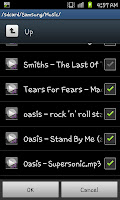
When you you've done that you will be taken back to the list of your songs though this time they will have a tick back next to them allowing you to select which files in particular you are wanting to select. Select which ever files you are wanting to share. In the image to the right you can see I've ticked 4 musical tracks from my Music folder.
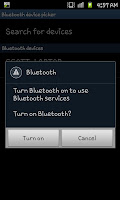
When you've selected all the files you want to send click on the "OK" at the bottom of the screen. You will then get a prompt screen like the image on the left here asking if you want to turn on bluetooth. Click the "Turn on" option and your phone will scan for the devices in the local area.

When it's completed the search click on the device you're wanting to send the files to. You may be required to input some form of security at this stage before it will start to send (you will be guided on one or both devices on exact instructions and then the files will send.
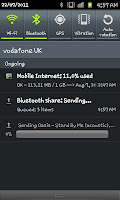
If you pull down the screen from the top you will be able to watch the transfer of the files as they go through. Just remember at this stage not to turn bluetooth off as it will cancel the sharing process.

Somethings to remember:
Please do no illegally share copyrighted material, although it's possible, it is breaking the law.

Remember that Bluetooth can run your battery down so don't try sharing 100's of songs at once.
Neither the send or recipient can turn off bluetooth during the process.

Tunein Radio

 One of the most useful apps for smartphones today is "Tunein radio" which allows your phone access to many, many more radio stations than you'd have ever thought possible. After recently looking at the inbuilt FM Radio application for the android operated Samsung Galaxy S2 some have asked "What about AM radio?"...well this is why Tunein is brilliant. Let me explain.

At the moment android phones AREN'T built with an in built AM radio receiver (or an MW one if you prefer MW radio). Using the radio technology of phones will generally only allow you to pick up FM frequencies. However using the internet you can pick up almost any radio station and that's where Tunein comes in and turns your phone into a mobile radio capable of receiving the full range of services including DAB (Digital radio) stations.

To use the application you can either navigate using the vast number of menu's (as shown above right) or click on the little search icon (in the top right corner) and type in the radio station name. For the example on the right we're using BBC Radio 5 Live (as you can see by the channels name). The channel in question cannot be listened to during normal hours via the FM frequencies (though it does take over the night shifts of some local stations) though thanks to Tunein radio you can listen to it in digital quality anywhere with the phone.

Th app, although fantastic, does have 1 major drawback which isn't actually the apps fault. It does require internet access so if your on a mobile data allowance you may want to be somewhat reserved when using the application. If you have a wi-fi connection however you will find the app to be wonderful and open up a host of new options to you.

Tunein claim that they offer over 50,000 stations and have now started offering more search modes searching for things such as songs. If your a fan of music, sport, news or debate this is really the app for you!


3G Watchdog

 After having used 3G Watchdog since getting my HTC Wildfire (and subsequently my Samsung Galaxy S2) it seems only fair to look at one of the must have apps for any mobile internet using android phone users. The basic app is available for free from the Market and is one that you should already have (and if you don't, get it now!).

What is 3G Watchdog?

The application is currently the best way to keep track of your data usage on an Android phone. It does this by recording all your usage in a screen like the one in the image to the right hand side.

 For those who are on a capped allowance of mobile data, this is an application that will allow you to set a your plan into the app and then track how much data you are using. The screenshot to the left is the plan setting, which allows you to select your allowance, you time span, you reset date and when you want the phone to alert you that you're getting close to your limit (i.e. when 75% of your allowance is used).

As well as tracking usage through the month the app also allows you to see data usage for the last 31 days as both received and sent this is where the application can do that little bit extra.

If you're on a capped allowance, no matter how big, 3G Watchdog is a must have app that will allow you to track the usage on your phone. It adds a feature that SHOULD have been put in the phones when they were made.

How to get the most from the FM radio on the Samsung Galaxy S2

In a recent entry I looked at how to use the FM radio application on the new Samsung Galaxy S2 android powered smartphone. Though lets be honest, we all want to know how we can get more from any and every feature that a phone may have. To get the most from the application you need to click on the phones menu button and you'll notice a menu at the bottom of the application (see the image to the right). This menu allows you to immediately play the the radio through the phones speaker (clicking "Via Speaker"). Although you will need to keep the headphones in (remember they act as an antennae) the sound will come from the speaker and allow for the phone to act as a louder radio. Beware however this will burn down the battery.

If, instead of pressing "via Speaker" you select the "Settings" option you will see a screen like the one to the left. The key options here are "Background playing" which means that the application won't stop when you close the application and "Show station ID" which allows you to easily recognise which station you're listening to.

Of course I will advocate also selecting "Alternative frequency" which will try similar frequency's to the one your using if you're reception starts to drop in any particular area.

Tuesday, July 19, 2011

How to use the FM Radio on the Samsung Galaxy S2

One of the most useful functions of the Samsung Galaxy S2 android powered smartphone is the fact it has an inbuilt FM Radio. To access it you merely need to open the application whilst you have a set of headphones connected to the handset. The headphones act as the antennae so these will need to be connected.

When you first open the application it will do an Auto scan that will go through the FM frequencies and find any available channels.
All the available channels will be listed after the scan and allow you to select one to listen to in a list format (as you can see in the image to the left hand side). These channels, or stations if you prefer, will include national radio (in the UK these will include Radio 1, Radio 2, Classic FM) and local radio stations (in my case things like The Bay and Radio Cumbria).

If you click the phones back button at this stage you will open the FM Radio's normal interface which allows you to add 4 "quick select" channels along the bottom, quick scroll between channels by pressing the arrows and tuning it with the dial in the middle.

The volume can be controlled through the volume button in the top right hand whilst the player can be turned off via the control in the top right hand corner. Overall it's very simple to get to work and has a number of little tricks we will be looking at in the next entry on this blog.

Note:
Make sure your headphones are FULLY inserted, you may not get a working signal if they aren't fully connected.