A lot of people on the internet have been asking how to copy bits of text from websites on to their Samsung Galaxy S2
cell phone
. The funny thing is that the in-built browsers makes copying much more difficult than using the (much better) alternative Opera Mini browser.
If you wish to use the default browser you need to hold the screen where a word is. You will notice that you get a magnifying glass type of thing over the screen, if you release whilst on the word you'll get an option like there is shown on the screen shot to the right. If you stretch the marks apart you can copy more text though this method is somewhat slow as it seems to take longer than it should to drag for multiple words.
Using opera mini you start with the same concept, press and hold on the screen and when you get a menu screen like the one shown on the image to the left you need to choose the "Select Text" option. From here you can select whole pages by dragging your finger along the text and this will highlight it blue. As soon as you release your
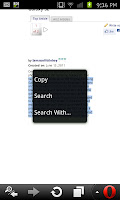
finger from the screen you will get a new menu come up with an option to "Copy". You can then do plenty with what you've copied, whether you want to use it to post on a website forums or an e-mail or even a text.
To
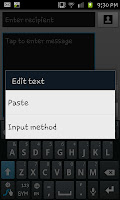
paste your copied text you need to hold your finger in a "message box" such as the box you would enter a text message or an e-mail in. When you hold your finger on the screen you will see a pop up menu (see the screen capture to the left) with the option to paste. As soon as you select paste you will notice all the text you selected appears in the box.

To the right here you can see an excerpt that was copied into a text message using the Opera mini browser to copy and the default messaging app to paste. The actual amount of text you can copy and paste in this method does seem to be incredibly large and I've yet to stumble on the limit, though it would be fair to assume that if you wanted to copy and paste a huge amount the Samsung Galaxy S2 may have it's limits or take a moment to copy.
This is one of the many times that using Opera Mini is an advantage over using the default browser which has a number of limitations and I'd advise downloading either Opera mini or Skyfire for a number of reasons not just this one.
Edit:
Thanks to a comment by Material girl I've been playing about with this and realised that if you drag the little "quote marks" when using the default browser you can use that to highlight more than just a single world.
Thank you to Material Girl for pointing this out.
The text from the copied screen capture is from:
The Samsung Galaxy S2 review on Helium.com

 area (as you can see in the screenshot on the right). After holding your finger there for a second or two you will be given two options you can either "Paste" or "Clipboard". If you click "Paste" it will paste the last thing you selected to copy, if however you selected Clipboard you will be shown number of options from which to select.
 As you can see in the image to the left you can select any of the items from the clipboard, this allows you, for example, to copy and paste several different things easily and when you want.


