Showing posts with label Samsung Galaxy S2 Smartphone. Show all posts

Thursday, June 30, 2011

How to connect your Samsung Galaxy S2 to your Laptop/PC by Bluetooth

 Bluetooth is one of the great technological advances over the past few years and no modern phone would be complete with out out. Whether you want to connect to another phone or a laptop Bluetooth is one of the best technologies you can use. In this guide we are just going to cover the method in which you connect the phone to a laptop (in this case running Windows 7).

Firstly you will need to turn on Bluetooth on your Samsung Galaxy S2. To do this you need to press "Menu" then "Settings". At the settings menu you need to click on "Wireless and network" and then "Bluetooth settings". This will take you to the screen on the right, at this point put a tick in the "Bluetooth" box to activate the Bluetooth and do a scan of the local area.

When you've located your laptop click on it and you'll get a screen similar to the one on the left. At the same time you're laptop will display a screen similar to the on the
right. If the codes correspond with each other click Accept on the phone and "Yes" then "Next" on the laptop. After a few seconds they should pair up and the laptop will install a number of drivers.

This will allow you to do a number of things, most notably play music from the phone through the laptop and move files. If you've downloaded a number of apps you really can add to what you can do and it's likely that there will be a remote control app (though I can't confirm this for sure sadly).

Tuesday, June 28, 2011

How to stop a number calling your Samsung Galaxy S2

We all do stupid things when we're hot headed and say things we probably shouldn't in the heat of the moment. There's always a time where we want to avoid a call from someone when we know their about to call. Thanks to one one of the features of the Samsung Galaxy S2 you can "black list" numbers to prevent them from calling you.

To add a number to your black list you need to open the contact's page such as Scott's
shown to the right here and then press on the menu button on the handset. This will open up a small menu at the bottom of the screen with 6 options. The option you need to select is more then "Add to black list" when the option comes up.

When you've added the black list you will see a little blue sign next to the persons number (as seen next to Scott's number in this picture). If Scott now tries to call my Samsung Galaxy S2 he'll just hear a dial tone as if my phone was switched off! Now I can avoid the ginger virgin with ease.

 To remove a number from black list you can follow this method but click on "Remove from black list" when you previously clicked on "Add to blacklist".


Although you stop the calls coming through you DO NOT prevent the number from sending you texts.

Monday, June 27, 2011

How do I set an alarm on a Samsung Galaxy S2?

 To set an alarm on the Samsung Galaxy S2 firstly we need to find the Clock application. If you have this on a home screen then fantastic just find it and click it. If however you don't have it on a home screen you may need to open up the Application drawer and select it. If you look to the screen shot on the right hand side you can see "Clock", which is the one you need to select. Oddly there isn't an actual specialist "Alarm" app as some may have expected.

When you first open the Clock application you will see a screen like the one on the left here. From here it's relatively straightforward on setting an alarm. Obviously you click where it says "Create alarm" to start with.

After clicking on "Create alarm" you will see a screen like the one here on the right of the page. You use this screen to set everything about the alarm you want to set. From setting what time you want it to go off, to how loud, what days it goes off to what tun plays when it goes off. When you've set everything you want on your alarm you have to press save.

When you've saved your saved your alarm your Clock applications first screen will look like the image to the left with your times and days selected. If you want to selected a number of different alarms you can create another alarm by just following the above stages.

How do you manually call someone with a Samsung Galaxy S2?

Sadly with being a bit "technically advanced" I've sort of ignored the simple things with this website so far so now we'll take a look at one of the most simple things we could possibly want to do with the Samsung Galaxy S2, making calls. Of course despite the Android operating system, the Super AMOLED Plus screen and it's ravenous dual core processor the Samsung Galaxy S2 is essentially, a phone and phones are there to make phone calls.
To start we press the "Phone" icon on the home screen. By default the phone icon will be shown on every home screen on the bottom left corner (if you've rooted your phone it may be possible that you've moved it). Pressing the phone icon opens a screen like the one to the left. From here you enter the phone number you wish to call. This is the "manual part" of the call (as opposed to calling a contact).

When you've completed entering the number and any area code you may need to enter press on the small green phone icon. Press on the green icon will see an option screen
popping up allowing you to either use the dialer to make the call or "SkypeOut". If you've got free minutes or wish to just make a normal phone call you will usually use the "Dialer" option though if you've got a connection to wi-fi using SkyeOut could be a better option for you.


Of course if your contact is stored on your phone you can click contacts and call through either the dialer contact tab or the normal contact app from the homescreen with the same option to call via Skype or the Dialer.

How do I copy and paste text from the web with a Samsung Galaxy S2?

 A lot of people on the internet have been asking how to copy bits of text from websites on to their Samsung Galaxy S2 cell phone. The funny thing is that the in-built browsers makes copying much more difficult than using the (much better) alternative Opera Mini browser.

If you wish to use the default browser you need to hold the screen where a word is. You will notice that you get a magnifying glass type of thing over the screen, if you release whilst on the word you'll get an option like there is shown on the screen shot to the right. If you stretch the marks apart you can copy more text though this method is somewhat slow as it seems to take longer than it should to drag for multiple words.
 Using opera mini you start with the same concept, press and hold on the screen and when you get a menu screen like the one shown on the image to the left you need to choose the "Select Text" option. From here you can select whole pages by dragging your finger along the text and this will highlight it blue. As soon as you release your
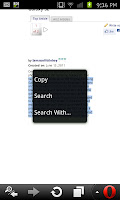
finger from the screen you will get a new menu come up with an option to "Copy". You can then do plenty with what you've copied, whether you want to use it to post on a website forums or an e-mail or even a text.

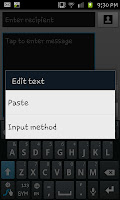
To paste your copied text you need to hold your finger in a "message box" such as the box you would enter a text message or an e-mail in. When you hold your finger on the screen you will see a pop up menu (see the screen capture to the left) with the option to paste. As soon as you select paste you will notice all the text you selected appears in the box.
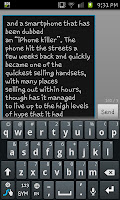
To the right here you can see an excerpt that was copied into a text message using the Opera mini browser to copy and the default messaging app to paste. The actual amount of text you can copy and paste in this method does seem to be incredibly large and I've yet to stumble on the limit, though it would be fair to assume that if you wanted to copy and paste a huge amount the Samsung Galaxy S2 may have it's limits or take a moment to copy.

This is one of the many times that using Opera Mini is an advantage over using the default browser which has a number of limitations and I'd advise downloading either Opera mini or Skyfire for a number of reasons not just this one.

Edit:
Thanks to a comment by Material girl I've been playing about with this and realised that if you drag the little "quote marks" when using the default browser you can use that to highlight more than just a single world.
Thank you to Material Girl for pointing this out.

The text from the copied screen capture is from:
The Samsung Galaxy S2 review on Helium.com

How to find the battery level on a Samsung Galaxy S2

Although the Samsung Galaxy S2 does have a little battery marker in the top right hand corner close to the clock the image can be hard to really get a good measure from. Of course you can use the icon to guess but how about finding out the exact % of the battery life?

Although there is a number of widgets that's do the job of telling you just how much battery life you have left on the phone there is also the in-built information screen which has the details you'll be wanting. If you go to the settings screen (menu->setting) then scroll down the options, the bottom option will be "About phone". If you click on that you will see a sub option that says "Status" and that's what the screen to the right is which shows the phones battery level (at this point it's 67%).

E-Mail v MMS-Which is better?

When it comes to sending images, such as photographs from you to a friend via your phone there is 2 very different methods that we've looked at. Firstly we looked at sending MMS messages and more recently we've looked at sending E-mails with attachments, but which is better and why?

MMS The Pros
  1. Easy-It really is just a matter of clicking attach then adding the item you want to send.
  2. Direction-It goes directly to your contacts phone meaning they will get it and will likely have their phone on them.
  3. "Snap and Go"-You can literally take a picture and send it with in seconds
MMS The Cons
  1. Cost-Unless you have a free MMS allowance they can cost quite a bit to send, anywhere into the 35p range which adds up.
  2. Limitations of Receiver-Although most phones can now receive MMS some older phones can't and those new phone which don't have packet data on won't receive them either. 
  3. Limitations of Sender-MMS messages typically have a limitation in size and will often only allow 1 or 2 pictures per message.
E-Mail The Pros
  1. Simple-Although not as simple as sending via MMS it's still very easy and if you follow the guide on this blog you really will never struggle with them.
  2. Open Receiver-Everyone has an E-mail address as long as you know it you can send the message and know it will get to them.
  3. Price-This is completely free if you have either a wi-fi connection or a mobile internet allowance which most people do have.
  4. The limits have been lifted-Rather than only being able to send 1 or 2 images per messages you can actually send quite a few by e-mail at once.
E-Mail The Cons
  1. Return to Sender-You need to make sure you have the right address or the E-mail will fail.
  2. Time to Receive-Not everyone has access to their E-mails on their phone and may need to wait to access a PC/Laptop to actually see the image.
  3. New v Old-Whilst it's very easy to do on things like the Samsung Galaxy S2 it's not as easy to do on older phones like a Sony Ericsson C902.

So now the moment of truth, which is better?
Personally I'd tend to use the E-mail system whenever possible. The people I'd be sending images and things to are contacts I have the e-mail address for as well as phone numbers. Personally I think it's a bit pricey to be paying 30p a message (even though I do have an MMS allowance on one of my contracts) and I know at least 2 mobile contacts have packet data turned off anyway.

For some however, mainly those with perhaps older phones it'll likely be easier to pay the 30p or so to send the MMS rather than struggle through and send an attachment to an e-mail via logging in with the browsers that were used on the older phones. At heart though it's a personal choice, and one that could perhaps be avoided by sending them at home via something like an IM client. Personally I'd side with E-mail though it's not suited to everyone.

How to add attachments to e-mails with the Samsung Galaxy S2

We recently looked at how to send MMS messages with the Samsung Galaxy S2 to share your pictures with a friend, an alternative option is sending them the image by E-mail using either Mobile Internet or Wi-Fi. We're only going to be looking at doing it via the Gmail system (click on the Gmail icon on your phone to access this) which should open something similar to the image on the right side of page you can see). If you press he phones menu button you can open up the small menu at the bottom of the phone and from that you need to click compose.

The compose screen looks a little bit like this, though again you need to press the "menu" button to open up the small selection of options at the bottom. Here you need to press on the "Attach" option which will then allow you to add images or anything else you would like to send.

When attached you should add your subject, your recipient and any text you wish to add (looking something like the image to the right) before pressing on the "Send" icon at the top of the screen. The send icon is the one with an envelope (the one with a floppy Disk is the draft option). The actual writing of an e-mail is easy and your contacts are easy to sync with your e-mail account or even your facebook account.

The advantage of sending E-mails instead of MMS will be looked at shortly in our next piece.

Sunday, June 26, 2011

How to send an MMS (or Picture Messages) from your Samsung Galaxy S2

With the help of the Samsung Galaxy S2's excellent camera we've all managed to take a photograph we want to share with a friend. With the help of our contract we may even have a free MMS (Multimedia Messaging Service) allowance and want to use that, though how do we send MMS with the Samsung Galaxy S2? How do we use the phone to send picture messages?

Firstly open up your "messaging" option and then on the icon and then either select a conversation (with the person you want to send the text to) or select the new text option to get a screen that looks a little like the one you can see to the right. The part you need to concentrate on here is the little "paperclip" icon. This is the icon that, for anyone who uses E-mail should look familiar, it is after all the "attach" icon and will allow you to attach things like pictures, sounds or videos.

 After clicking on the attach icon you will open up a long list of possible things you might want to attach (as seen on the left here). If it's a picture you've taken you click on "Pictures", if it's one you are about to take click on "Capture picture" of course if it's not a picture then select one of the other options. When you've selected a picture you will be taken back to the text screen to add some textual content and select a contact.

When you've completed adding what ever text and media you wish to send you merely need to click on send and the contact should get the message inside a few seconds.

Alternatively if you've not got an MMS allowance or so many free picture messages a month you could instead send the image by e-mail via either mobile internet or Wi-Fi if you have the contacts E-mail address. We'll be showing how to do that soon.

Thursday, June 23, 2011

How to change the font on your Samsung Galaxy S2

 Along with everything else you can do to personalise your Samsung Galaxy S2 (SGS2) smartphone you can also change the font. Although the selection is relatively limited to begin with there is an ability to buy more form the Market (though these do feel over-priced and aren't worth their money on the whole).

To change the font just follow this guide which starts on the right with the "Setting" screen. From here you need to click on "Display" which is by default the 4th option down.  The display settings menu, for illustrative purposes can be seen on the screen capture to the left of this paragraph. From this list of settings you need to slick on the top one, the "Screen display option"


The "Screen display option should look something like the screen on the right here, The top option, as you can see, says "Font style" if you click on this you open up a new menu which 
contains the fonts available to you. In my case I've got the option of the Default font, Choco cooky and Helvetica S (as you can see to the left).


When you change the font setting you'll notice that everything looks very different. The below example shows a text conversation with the Choco cooky font being used on the phone. As you can see the font looks a lot more fun and less serious than some of the others and can be a good way to personalise your phone.

Ways to personalise your Samsung Galaxy S2

So far in this blog we've looked at both setting up a ringtone for the Samsung Galaxy S2 (or SGS2) and for changing the wallpaper (or homescreen) on the phone. Though there is more than just that to personalising your phone, in fact there is much, much more to changing the way your phone looks and operates.


Firstly you can set up your own "home screens", by clicking on the menu button and then pressing on the "Add" button which allows you to add things like applications shortcuts, widgets and a number of other things.


If we look to the left we can see the menu that allows us to add things like shortcuts. These are incredibly useful and can be placed along any of the 7 homescreens. These effectively help you move from the home screen to the apps swiftly and effectively. In my case the home screens each have their own uses
with the 1st homescreen being the general
activity screen whilst screen 4 (to the right) is what I've set as a gaming screen.

 As well as changing the way the phone looks you can also change the way the phone actually functions. You can download a number of alternative keyboards though with out even needing to do that you can change the way you type to changing the input method to "Swype". So far we have found 2 separate ways to turn one swype, which is a completely different way of writing texts.
Method 1 can be found here
Method 2 can be found here

As well as changing how you write texts you can also change the way all the text on the phone looks by changing the font on the phone which is incredibly easy and can again make a phone feel that bit like it's really yours.

Even doing things like browsing the net is easily personalised. You can choose from a number of browsers to use, not just the in built default one. Personally I'd advise using both the Skyfire and Opera Mini browsers and deciding which of those two you prefer.

Of course if you want to root your phone you can open up a host of other personalisation settings though personally I'm not looking down that alley so won't be looking at those options.

Wednesday, June 22, 2011

Copying your contacts to your SIM card with a Samsung Galaxy S2

If you've got a Samsung Galaxy S2 mobile phone and want to copy your contacts from your phone onto the Sim card you may find yourself getting a little bit lost. Here we are going to guide you threw the process of "exporting your contacts".

To start this press on the "Phone" icon on the bottom of your phone to open up the "Keypad". At the top of the screen you sill see tabs. "Keypad" (the one you've landed on), "Logs" (the history of all your calls and texts), "Contacts" and "Favourites". At this point you need to click on the "Contacts" tab. Here you will find a list of all your contacts, which in some cases can be a huge amount if your contacts have been synced from Facebook. At this point you need to click on the menu button and you will see a menu pop up at the bottom of the screen. The menu will have an option saying "Import/Export contacts" which is the option you need to select.


To put the contacts onto your SIM card you need to select the "Expert to SIM card" option (whilst to get contacts from your SIM card you need to select "Import from SIM card). The next screen you will see if your contact list with tick boxes for you to select a number of contacts to export. When you've selected all your contacts click on "Export" and then "OK" and you're done the contacts will now be on your SIM card.

If the contacts from things like facebook you won't really need to export too many as you will likely be replacing the phone in the future with something else you can sync to your facebook account (or even google accounts) which means the future will see you being able to move numbers with out needing them on your SIM (in fact you can even use various apps for the job now).