Although the Samsung Galaxy S2 does have a little battery marker in the top right hand corner close to the clock the image can be hard to really get a good measure from. Of course you can use the icon to guess but how about finding out the exact % of the battery life?
Although there is a number of widgets that's do the job of telling you just how much battery life you have left on the phone there is also the in-built information screen which has the details you'll be wanting. If you go to the settings screen (menu->setting) then scroll down the options, the bottom option will be "About phone". If you click on that you will see a sub option that says "Status" and that's what the screen to the right is which shows the phones battery level (at this point it's 67%).
Showing posts with label battery life. Show all posts
Monday, June 27, 2011
Saturday, June 18, 2011
How to get the most from the Samsung Galaxy S2 Battery
We all know that the big problem with smartphones is the battery life. The fact of the matter is that we will almost certainly see ourselves needing to charge the battery on an almost nightly schedule. This however doesn't stop us from wanting to prolong the battery life. This little entry is going to look at how to prolong the life of a Samsung Galaxy S2, though the tricks and tips mentioned here can really be translated almost any phone on the market.
Firstly we'll go a screen that will be our immediate friend, the Power saving mode screen. To access this screen to the right you need to open up the settings (press the menu button then settings) and scroll down to the "Power saving mode" menu which should be the fifth option down.
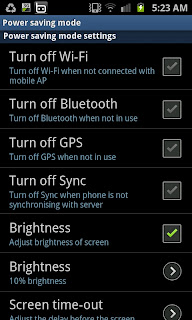
The first thing you want to do when you get to this menu is to press in the little box that allows you to enable "Power saving mode". This setting allows you to use all those other options that are below such as turning off things like GPS, Wi-Fi and Sync. The big one perhaps though is turning down the brightness of the screen to just 10%, especially if your indoors as this will save a lot of the life of the battery if your still using it. I would advise, if you're not using anything on the phone, to tick all the boxes and lower the brightness to 10%.
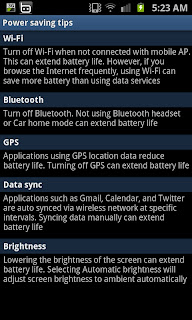
Further down the Power saving mode menu you will find a "Power saving tips" screen (that looks like the one to the right). This basically covers what I've already said though it misses a few other tricks you can use to prolong the battery in other ways.
First for your background try to use a stationary one (so not fishes swimming or fireworks) as an animated background uses up battery quicker than a still image. Another trick is to turn the sound off on the phone. This is a brilliant trick if you receive a number of texts and your phone is always buzzing. Although it can be an inconvenience each one of those noises takes a small portion from the battery.
Although we may not like to do this next thing we may need to. Put the phone down. Yes, I know that's hard but just hear me out. Every input the phone gets and every time the screen lights up, vibrates, or makes a sound drains the battery. If we are trying to preserve the battery only use it for the most necessary of things. Don't sit there taking photographs with the flash on or playing "The King of OX" as both with eat into the battery. In fact the fewer applications you can have running the better.
The final tip is to check your battery usage. To do this you need to open up the "Settings" then scroll down to "About phone" and click "Battery usage". You'll then see a screen similar to the one below which allows you to see what exactly is eating up your battery all the time. This is where you can start to make personalised changes. For example make fewer calls, or close certain programs (Opera was responsible for 2% of my battery usage and has been closed due to it). By looking at this screen and the Energy saving mode you can work towards getting as much from the Samsung Galaxy S2 battery as possible.
Firstly we'll go a screen that will be our immediate friend, the Power saving mode screen. To access this screen to the right you need to open up the settings (press the menu button then settings) and scroll down to the "Power saving mode" menu which should be the fifth option down.
The first thing you want to do when you get to this menu is to press in the little box that allows you to enable "Power saving mode". This setting allows you to use all those other options that are below such as turning off things like GPS, Wi-Fi and Sync. The big one perhaps though is turning down the brightness of the screen to just 10%, especially if your indoors as this will save a lot of the life of the battery if your still using it. I would advise, if you're not using anything on the phone, to tick all the boxes and lower the brightness to 10%.
Further down the Power saving mode menu you will find a "Power saving tips" screen (that looks like the one to the right). This basically covers what I've already said though it misses a few other tricks you can use to prolong the battery in other ways.First for your background try to use a stationary one (so not fishes swimming or fireworks) as an animated background uses up battery quicker than a still image. Another trick is to turn the sound off on the phone. This is a brilliant trick if you receive a number of texts and your phone is always buzzing. Although it can be an inconvenience each one of those noises takes a small portion from the battery.
Although we may not like to do this next thing we may need to. Put the phone down. Yes, I know that's hard but just hear me out. Every input the phone gets and every time the screen lights up, vibrates, or makes a sound drains the battery. If we are trying to preserve the battery only use it for the most necessary of things. Don't sit there taking photographs with the flash on or playing "The King of OX" as both with eat into the battery. In fact the fewer applications you can have running the better.
The final tip is to check your battery usage. To do this you need to open up the "Settings" then scroll down to "About phone" and click "Battery usage". You'll then see a screen similar to the one below which allows you to see what exactly is eating up your battery all the time. This is where you can start to make personalised changes. For example make fewer calls, or close certain programs (Opera was responsible for 2% of my battery usage and has been closed due to it). By looking at this screen and the Energy saving mode you can work towards getting as much from the Samsung Galaxy S2 battery as possible.
Subscribe to:
Posts (Atom)


