With the newer Samsung phones you may have been advised to download a program called Samsung Kies from the Samsung website. Kies is a program in which you do things such as move files files, edit contacts and most usefully back up your phone. This guide, although based on backing up a Samsung Galaxy S2 will work for most newer Samsung phones, and can be very useful if you ever end up with any issues.
Firstly you'll of course need to download Kies on to your PC or Laptop and then connect your phone by a USB cable to your computer device. After doing that you should open Kies and you'll see a screen like the one above. From this screen you'll notice 4 tabs along the top, the one you need to select is "Back up/Restore" which is the tab on the extreme right. After pressing on that your screen should look a bitt like the image on the left.
On the"Back up/Restore" tab you need to select what options you actually want to back up. For example your texts and call log, or you photographs. Just note before selecting your options that if you have all your photographs or music on your laptop/PC you may be better off not backing these up as they can take some considerable time to back up and it can be a waste if you already have the tracks and images stored.
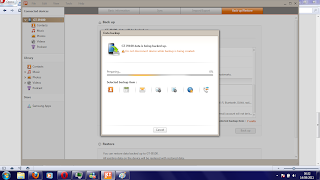
After selecting everything you want to back up click on "Back up" (under the list of items) and you should see your screen look like the shot to the left. This is the programming backing up your phone and can take a while depending on what you have chosen to actually back up. As said above backing up a large collection of music files CAN take a very long time, whilst a few tracks will be nice and quick.
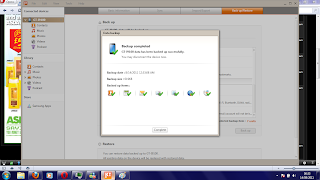
After all the information has been backed up you'll see the a screen like the one to the right with a ticks over the things that you backed up. To find the backed up settings they will be stored in the folder directory that you can see under the list of items (in the example case it was C\Users\Scott\Documents\SamsungKies\GT-19100) and can be used for restore purposes if you need them (i.e. after a factory reset).


 After selecting everything you want to back up click on "Back up" (under the list of items) and you should see your screen look like the shot to the left. This is the programming backing up your phone and can take a while depending on what you have chosen to actually back up. As said above backing up a large collection of music files CAN take a very long time, whilst a few tracks will be nice and quick.
 After all the information has been backed up you'll see the a screen like the one to the right with a ticks over the things that you backed up. To find the backed up settings they will be stored in the folder directory that you can see under the list of items (in the example case it was C\Users\Scott\Documents\SamsungKies\GT-19100) and can be used for restore purposes if you need them (i.e. after a factory reset).


