Although it's not a necessity for most, some phone users do ask “is it possible to take a screen shot of my phone?”
The answer is simple. Most of the time it is indeed possible to take print screens or screen captures of mobile phones. Depending on the actual phone however you may need to find yourself doing very different things. Most phones require you to download a computer program and have the phone and computer connected by a USB cable to use your computer to take the screen capture. This is how many websites take the screen captures for things like phone reviews and showing off features.
Rather than looking at the overly complex system involved in what the programs do we will look at how Samsung phones take screen captures. This feature has been in the most recent Samsung's including the Samsung Wave and now the highly acclaimed Samsung Galaxy S2. The way the Samsung phones take screen shots, or as they are known by some as "screen captures" or even "print screens", is incredibly simple and is actually an in-built feature that seems to be lacking in almost all the other phones.
By holding the “Home” button and pressing the “lock” button at the same time you will manage to use the secret “Screen capture” function of the phone which will take a print screen of the phone exactly how it is. The quality of this is far superior to using another phone (or camera) to take a picture and for people who want to use a picture of the screen this is an almost valuable tool.
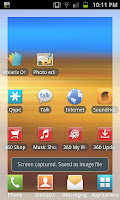
If you are successful when you try the phone will vibrate and a message will appear on the phone saying “Screen captured. Saved as image file”. These image files can be found very easily on the phone by looking in the Screen Capture folder of the phone for use later on.
Quick tips:
If at first you find your phone locking or going to the menu just try again.
Hold the "home" button for a slight moment before pressing the lock button (to stop the phone from locking)
Hopefully this guide will help you take screen captures with your Samsung Galaxy S2 smartphone.
Edit:
I've noticed a few people finding this place through google (hi folks) with one person googling "Screen capture directory"
The directory will be something along the lines of Computer\GT-I9100\Phone\ScreenCapture when connected to a Windows 7 computer. On the phone by it's self they can be found in Gallery\ScreenCapture. Hope that helps you with making the screen capture function of the Samsung Galaxy S2 as useful as it is for me.
For those wanting to know about the quality of image from a screen capture all the pictures of the Samsung Galaxy S2 screens have been done via this method of screen capturing.
The answer is simple. Most of the time it is indeed possible to take print screens or screen captures of mobile phones. Depending on the actual phone however you may need to find yourself doing very different things. Most phones require you to download a computer program and have the phone and computer connected by a USB cable to use your computer to take the screen capture. This is how many websites take the screen captures for things like phone reviews and showing off features.
Rather than looking at the overly complex system involved in what the programs do we will look at how Samsung phones take screen captures. This feature has been in the most recent Samsung's including the Samsung Wave and now the highly acclaimed Samsung Galaxy S2. The way the Samsung phones take screen shots, or as they are known by some as "screen captures" or even "print screens", is incredibly simple and is actually an in-built feature that seems to be lacking in almost all the other phones.
By holding the “Home” button and pressing the “lock” button at the same time you will manage to use the secret “Screen capture” function of the phone which will take a print screen of the phone exactly how it is. The quality of this is far superior to using another phone (or camera) to take a picture and for people who want to use a picture of the screen this is an almost valuable tool.

If you are successful when you try the phone will vibrate and a message will appear on the phone saying “Screen captured. Saved as image file”. These image files can be found very easily on the phone by looking in the Screen Capture folder of the phone for use later on.
Quick tips:
If at first you find your phone locking or going to the menu just try again.
Hold the "home" button for a slight moment before pressing the lock button (to stop the phone from locking)
Hopefully this guide will help you take screen captures with your Samsung Galaxy S2 smartphone.
Edit:
I've noticed a few people finding this place through google (hi folks) with one person googling "Screen capture directory"
The directory will be something along the lines of Computer\GT-I9100\Phone\ScreenCapture when connected to a Windows 7 computer. On the phone by it's self they can be found in Gallery\ScreenCapture. Hope that helps you with making the screen capture function of the Samsung Galaxy S2 as useful as it is for me.
For those wanting to know about the quality of image from a screen capture all the pictures of the Samsung Galaxy S2 screens have been done via this method of screen capturing.


