Although Android phones are some of the best on the market (in fact I'd go as far as to say the
Samsung Galaxy S2 IS the best phone on the market right now) they do make some things much more complicated than they need to. One thing that never was as straightforward as it should have been was setting a ringtone. This how to guide will walk you through one of the methods of setting a ring tone on a Samsung Galaxy S2, the same method can be applied to a number of other Android phones including the HTC Wildfire (and presumably the whole HTC android range).
The first step it to open the "Music" application. Here it is shown on the home screen image between the "BBC iPlayer" and "YouTube" apps.
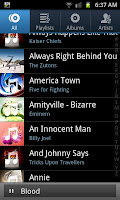
When you've opened the music player the next step is to find the track you want to use for your ring tone. If like me, you have a very deep collection of music on your phone (in my case over 800 songs) you may have a small nightmare so use the albums and artists options to narrow down the search for all elusive track.

When you've found the track you need to select it. This will usually mean the song automatically plays, though you can pause it before it's started if you want to do it all silently.
In this example we will be using Billy Joel's excellent track "An Innocent Man" from the album "
An Innocent man". After selecting the track you need to then press menu and you will again open a small menu at the bottom of the screen. At this point you need to select the option "Set as" which will open a menu that looks like the one below.
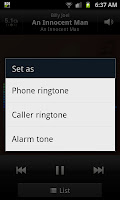
When you get to this screen you select what you want to use that track in particular for. Do you want to set a Phone ringtone (which will play when ever you get a call), a Call ringtone (which will play when a specific person rings) or an alarm tone (to go off when you need waking up).
If you wish to select a number of different Caller ringtones you just go through the process again from the song selection part and and select different callers. Whilst if you wish to change the ringtone at any time you just start this process from the beginning. It is worth noting however that this isn't the only way to set a ringtone on the Samsung Galaxy S2.
Like
setting a different wallpaper, choosing a ring tone is another way to personalise your Samsung Galaxy S2 smartphone and put your stamp on the handset to show that it's yours.


 After selecting "Set as" you will be given 3 new options. Yo will be able to select the track as a a "Phone ringtone", a "Caller ringtone" or an "Alarm ringtone". From this menu you should select "Phone ringtone" to select the track as your phone's ring tone.
 After selecting an option in the previous menu you will be taken back to the music playing screen. The music playing screen will have a swift message near the bottom telling you that the ringtone has been added (see the image on the right).


