Wednesday, September 28, 2011

How to save pictures from the internet on a Samsung Galaxy S2

We've all seen pictures online that we like and we want to keep. Using a Samsung Galaxy S2 this is incredibly simple and this guide will show you how to take the images you see on the web and download them directly to your phone. Firstly you'll obviously need to find a picture you want to use and go to the webpage with that image, for the sake of this example we're using this websites own article on taking screen captures with a Galaxy S2 (see the screen shot to the right).

When you find the image you need to hold your finger on it for a second or two before being given a contextual menu like the image on the left of the screen. You will need to scroll down this list to "Save image" and then select it.

To find the image on your phone you will need to open up your "Gallery" app and you should find the image in a folder called "download".

Thursday, September 15, 2011

How to turn Haptic feedback off on a Samsung Galaxy S2

 When using a Samsung Galaxy S2 you may notice that that screen vibrates when you touch it, a small vibration as if to acknowledge that you've been touching it. This function is called a "haptic feedback", and laymans terms is basically "feedback to being touched".

Whilst it has it's uses some people don't like it and want to know how to turn it off, this
guide is to show you how to disable it in only a few quick steps. Firstly you need to access the the settings menu (like in the screen shot on the left) and then access the "Sound" options. In side the sound options you will see a screen like the one on the right hand side.

At the bottom of the screen (you may need to scroll to it) you will see the option called "Haptic feedback". You will need to uncheck this box and then you will notice that the vibrations stop.

You can of course feel free to turn this back on if you ever want to use it in the future.


Wednesday, September 14, 2011

How to factory reset a Samsung Galaxy S2

 With modern phones we seem to end up passing them on to friends and family though before we pass them on we need to give them a factory restore to delete all our information from the phone. This guide will show you how to factory reset a Samsung Galaxy S2.

Firstly you need to open up the phones settings menu and scroll down to "Privacy". The privacy screen should look like the screenshot to the left with 3 options but the key one is the bottom option, "Factory data reset". Click on the "Factory data reset" option and you will see a new screen.

The new screen will look something like this one the one on the right of this article. It will explain what a factory reset actually does so make sure to know what a factory reset is. Also make sure you actually do want to factory reset your phone before going any further.

When you've read everything and are sure you still sure you want to reset the phone click on "Reset phone" at the bottom of the screen and then "Erase everything" on the screen that follows.

After this the phone will go into an "auto-pilot" and stop you from doing anything as it resets the phone to it's "new" factory state. This will delete everything stored on the "internal" storage (so contacts, apps and system settings) as well as erasing all accounts associated with the phone (so the handset will no longer be getting E-mails, twitter alerts etc).

Whilst this guide is specifically for the Samsung Galaxy S2 which are where the screenshots are from most Androids can be factory reset in a very similar way and hopefully it answers the question of "How do I factory reset my phone?"

How to safely disconnect the Samsung Galaxy S2 a USB connection

When you've connected your Samsung Galaxy S2 to a PC or laptop by USB and done all the stuff with either KIES or dragged and dropped all the stuff you need to do you'll want to safely remove your phone from your computer. Usually to do this sort of thing you need to click something on your laptop however with the Galaxy S2 things are easier.

Instead of "safely" disconnecting you need to look at your phone and you will see a screen like the one on the left. If you click "Home" on the phone at this screen it will disconnect you from the PC connection. If you wish to leave the phone to charge you can leave the phone physically connected but outside of the "USB connection mode".


Saturday, September 10, 2011

How to hide files on a Samsung Galaxy S2

 Recently on a forum I saw someone asking for a way to hide files, most notably pictures and videos. Although I'm being a bit presumptuous I'm guessing this is someones secret "Naughty" stash. As a result of being asked it was only fair to find out...could we really hide files in Samsung's flagship phone?

The Answer was yes!

Firstly you need to open up "My files" (which you can find in the app drawer) and then press the phones menu button which should give you a screen like the one on the left. When you get this menu select on
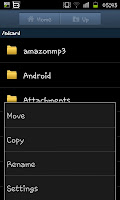
"More" from the bottom corner. After this you will see a new menu with 4 options (like the screen on the right) from this menu you need to select "Settings".
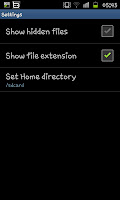
The "Settings" menu shows only 3 options, "Show hidden files", "Show files extension" and "Set home directory". You should see that "Show hidden files" is unticked, you need to tick this box then press the phones "Back" button.
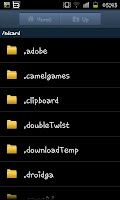
After pressing "Back" you will be taken back to the "My files" screen except you will notice a number of folders that weren't there earlier. These new folders at the top will all have a "." in front of them.

Now you actually have 2 options. You can use one of the existing "." folders or create your own "." folder (for example ".nakedgirls") and then move what ever you want to hide into that folder. So for moving the files you will need to find them on your phone (likely in Download or Dcim) and then move them as you would any other file (full guide on moving files can be read here).

Hidden files can only be accessed through going into "My Files" and opening the folder, and the files do take a few moments extra to actually load, though they won't show on gallery. The perfect way to hide the stuff you don't want other people to find.

Note this allows you to hide not only pictures on your Samsung Galaxy S2 but videos as well, in fact it allows you to hide any type of file on your phone, though for many people these will be known as "porn folders" they do have some legitimate uses.

Friday, September 9, 2011

How to make another Folder in your Gallery on a Samsung Galaxy S2

 One of the great things about modern phones is that you can store 1000's of pictures on them though with 1000's of photo's it can take you a while to actually find where the one you want is. This guide shows you how to create another folder in your gallery AND how to move pictures to it, this effectively allows you to have "Album" folders on your Samsung Galaxy S2.

To start with you are going to have to create a new folder. To do this go into your "My Files" section of the phone (this can be found in your apps drawer) and then press "menu" and click on "Create folder" when you see a screen like the one in the screen shot to the left.

The next stage is giving a name to your folder or album, for example "Pictures from the Prom" or "Holiday Snaps". After creating a folder and clicking on "OK" you will want to put pictures into the folder. To do this go to where the pictures are currently stored
usually you will need to open up the "DCIM" folder and then the "Camera" sub folder (though if the pictures you want to use are else you'll need to find them).

When you are in the folder with the pictures press menu button and then click on "More" and then choose "Move" from the following menu (which should look like the image on the left). After all of the images will have a tick box next to them so select all the images you want to put in the new folder and press "Move".

 After selecting "Move" that final time you should be able to select a folder for your pictures. Now you will need to find the folder you created (so the "Holiday snaps" or whatever) and then select the folder then click where the phone says "Move here". The pictures should then be moved and if you go into the "Gallery" you should be able to find the new folder with the images you moved.

If you are using this to create albums then you may want to create quite a lot of them and keep them up to date regularly. You can do this via either the phone's in built file manage or using a PC to drag and drop the pictures sadly however it seems impossible to save them directly from the camera to the folder.

How to add words to the HTC Wildfire dictionary

To continue our "Dictionary" series we'll now show you how to add words to the HTC Wildfire dictionary. To
start with you will need to enter the "Settings" screen on the phone and then scroll down to "Language and Keyboard". Inside the "Language and Keyboard" menu is 2 options "Select Language" and "Touch input". If you select "Touch input" you'll be given a menu like the one in the photograph to the left.

From this menu you need to select "User Dictionary" which is the bottom option. In the next screen you will see "Add new" at the top of the screen, press on this then enter the word you want to add to the dictionary